
How to Reschedule, Pause, or Bulk-Edit Your Scheduled Social Media Posts
To change posts you have already scheduled, open Socialic’s Calendar or Content Manager. From either one you can drag a post to a new date, open Quick Update to edit the caption and time inline, use Advanced Update to reopen the full composer, pause a post so it stops without being deleted, publish it now, or delete it. Select several at once for a bulk pause or delete.A scheduled queue is a plan, and plans change. A trend appears, a launch date moves, a post you wrote on Monday reads wrong by Thursday, or you simply over-scheduled and need to thin it out. The whole point of building a queue is that adjusting it should take seconds, not a rebuild.This guide covers both places you manage the queue, how to reschedule a single post, the difference between Quick and Advanced Update, pausing versus deleting, and how to make the same change to many posts at once.The Two Places You Manage the Queue
The Calendar — visual, one post at a time
A month grid with every scheduled post on its day. Best for seeing the shape of your week, spotting a day with three posts and a day with none, and dragging a post to a better slot. Click any post to open its Quick Update sidebar.The Content Manager — a filterable table, built for volume
Every piece of content in a sortable, searchable list with columns for thumbnail, content, channel, scheduled time, status, and engagement. This is where you filter down to exactly the posts you want and act on many at once. Use the Calendar to plan; use the Content Manager to do surgery.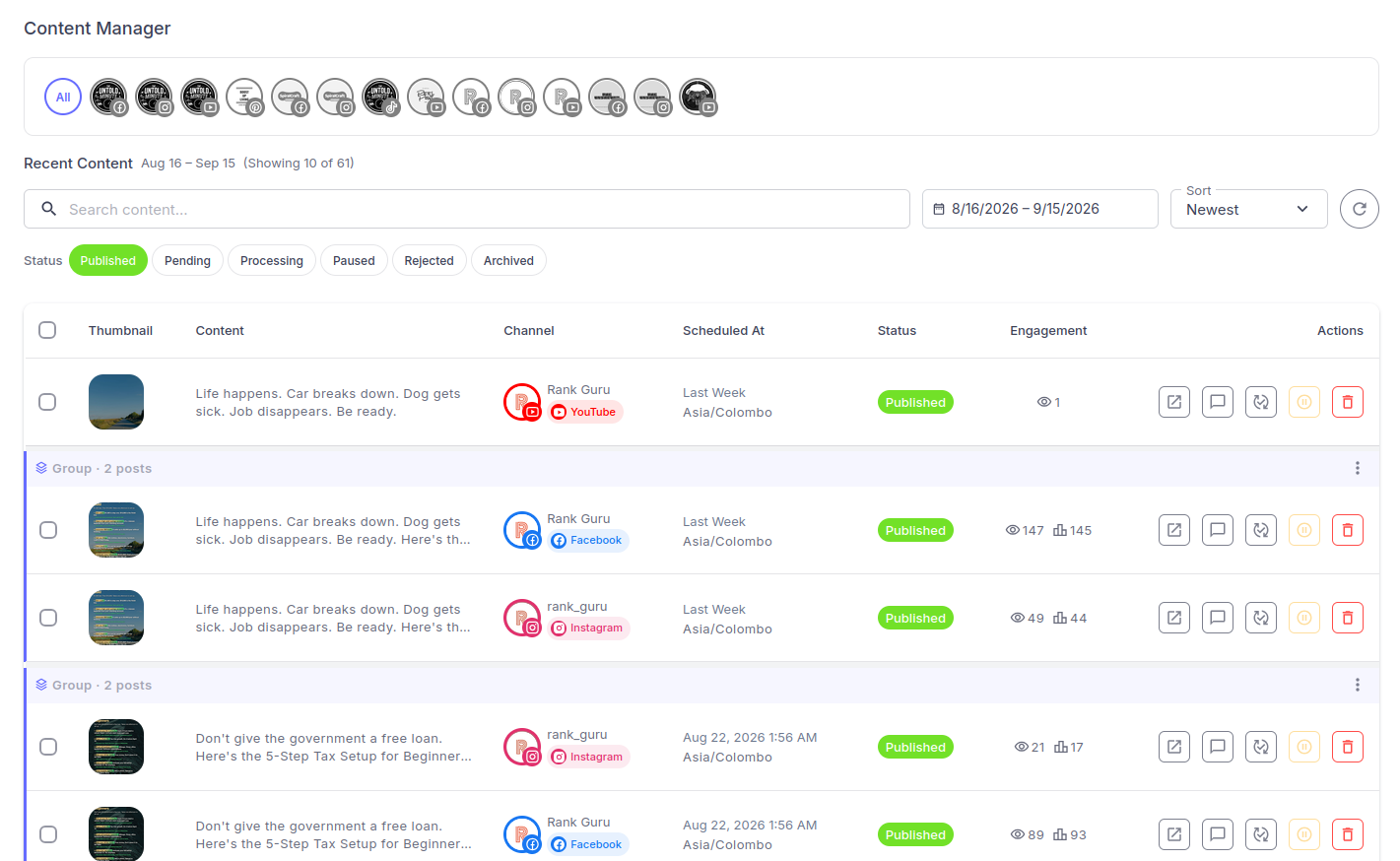
The Content Manager: filter by status, date, channel or search, then act on one post or a whole selection. Cross-posted versions of an idea appear as a group.
Step 1: Find the Post You Want to Change
In the Content Manager, the filters do the finding for you:Status. This defaults to Published, which trips a lot of people up — your upcoming posts are under Pending, and anything you have paused is under Paused. The other chips are Processing, Rejected, and Archived.
Date range. Narrow to the week or month you are working on.
Search. Type any words from the caption or topic.
Channel. The row of channel avatars at the top filters to a single account.
Sort. Publish Soon, Publish Later, Newest, or Oldest. “Publish Soon” is the one you want when you are triaging what goes out next.
Step 2: Reschedule a Post
On the Calendar
Drag the post from its current day to the new one. To change the time as well, click it and adjust Scheduled Time in the Quick Update sidebar.From the Content Manager
Open the post and change its Time Zone, Scheduled Date, and Scheduled Time. Check the timezone — if your audience moved or you are travelling, the same clock time is now a different moment.Publish it now instead
Publish Now sets the post to the current date and time and sends it immediately. Socialic confirms first, because there is no undo once it is live. Use it for time-sensitive content that cannot wait for its slot.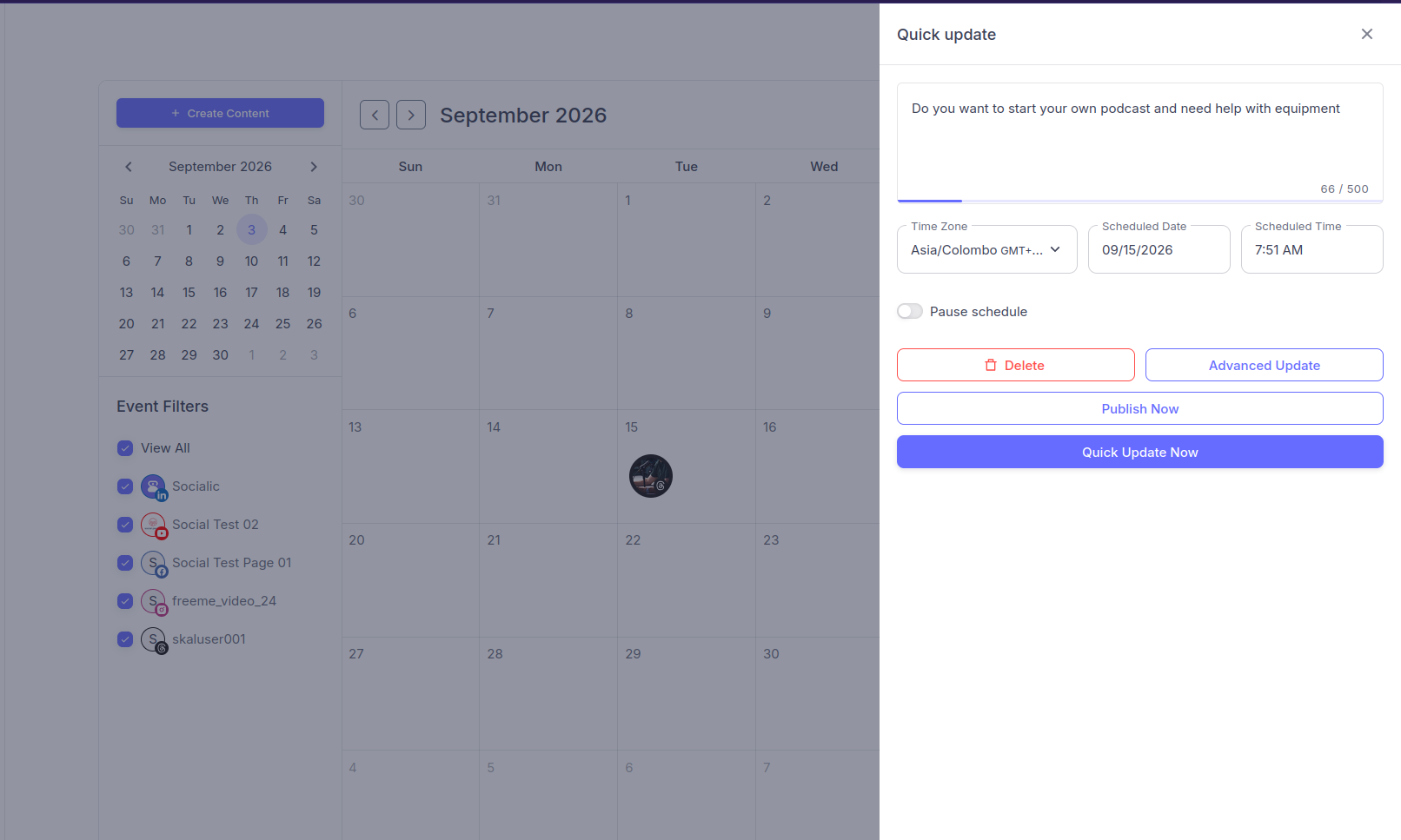
Quick Update, opened from the Calendar: change the caption, timezone, date or time, flip “Pause schedule”, or jump to Advanced Update, Publish Now, or Delete.
Step 3: Quick Update vs. Advanced Update
Every scheduled post gives you two ways to edit it.Quick Update — the inline sidebar
Opens beside the calendar or the row. It handles the edits you make most: the caption (with the same Check Grammar and Simplify tools as the composer, each proposing a change you accept or discard), the title, the schedule, and a Pause schedule toggle. Hit Quick Update Now and you are done. Socialic asks you to confirm the update first.Advanced Update — the full composer
Reopens the same interface you scheduled the post in, pre-filled. Use it when Quick Update is not enough: changing the media, adjusting a per-platform caption separately, or editing a platform-specific field like a YouTube title and tags, a TikTok cover, or a Pinterest board and link. If you are only fixing a typo or a time, do not open Advanced Update — Quick Update is faster.Step 4: Pause a Post (Instead of Deleting It)
Pausing is the move people forget exists, and it is usually the right one.What pause does. The post stays exactly as it is but will not publish at its scheduled time. It moves to the Paused status.
Unpausing. Flip it back on and it returns to the queue at its scheduled time (reschedule it first if that time has already passed).
Where to do it. The pause control on the post’s row in the Content Manager, or the Pause schedule toggle in Quick Update.
Step 5: Change Many Posts at Once
When you need the same change across a batch — you are going on holiday, a campaign got pulled, a channel is being retired — do it in bulk from the Content Manager:- Filter down to the posts you want (status, date range, channel, search).
- Tick the checkbox on each, or the header checkbox to select the page.
- Open Bulk actions — the button shows how many you have selected — and choose Pause or Delete.
- Confirm. Bulk delete states the count and warns that it cannot be undone.
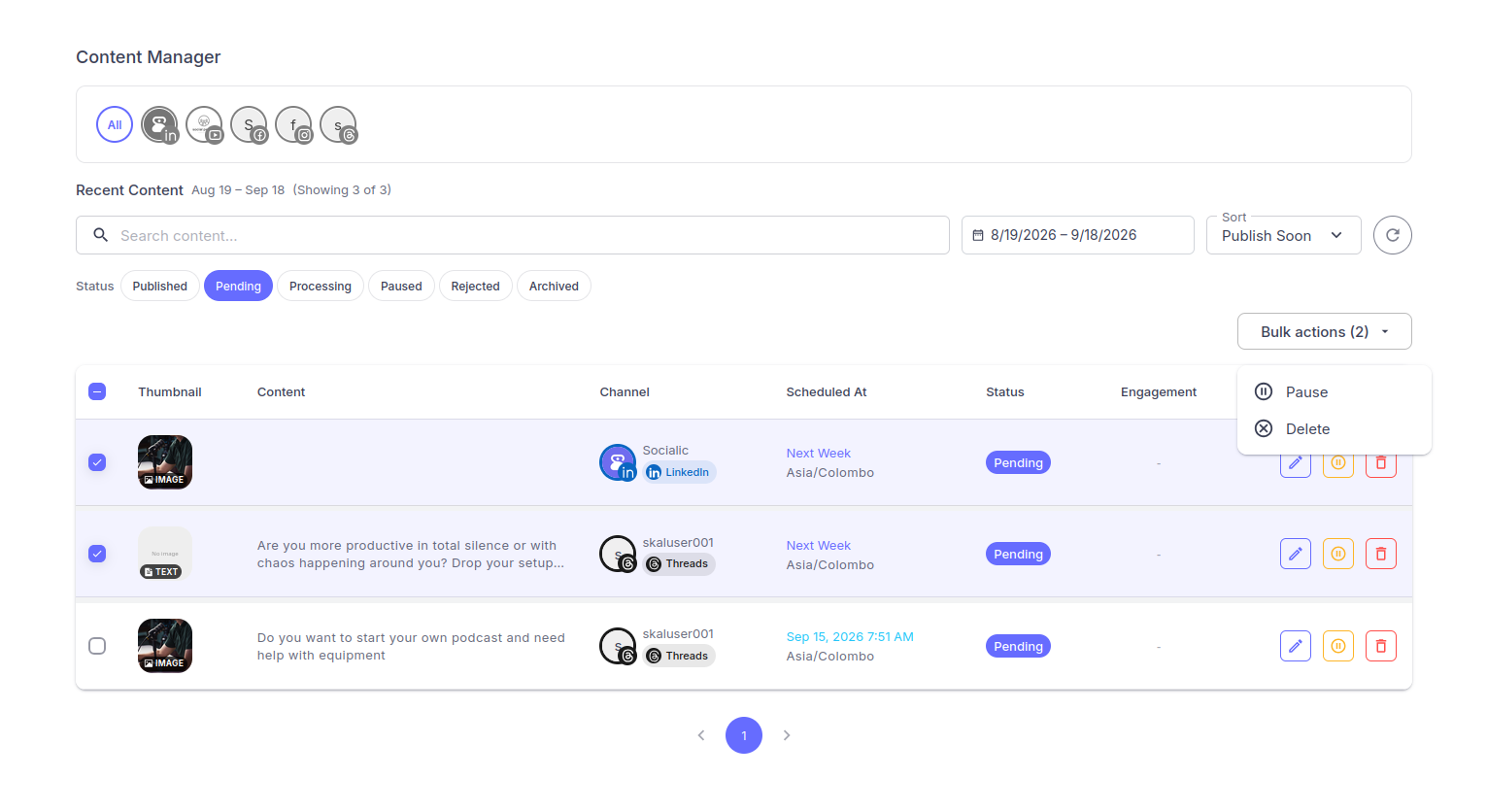
Filter to the posts you want, tick them, and Bulk actions applies Pause or Delete to the whole selection at once.
Step 6: Delete a Post (and the Instagram Exception)
Delete removes the post from Socialic. If it was still scheduled, that is the end of it. If it had already published, deleting also removes it from the platform. Every delete asks for confirmation and cannot be undone.The one exception is Instagram: Instagram does not allow any third-party tool to delete a published post. Socialic removes it from your Content Manager and gives you a direct link to delete it yourself in the Instagram app. If you delete a cross-posted group, the non-Instagram copies go automatically and Instagram is handed back to you as a manual step.Handling Posts That Failed to Publish
A post under Rejected did not go live — usually a channel that needs re-authorization, or media a platform would not accept. Open the post’s details to see why, fix the cause (re-authorize the channel on the Sync page, swap the media), and use Retry Publishing. If the slot has passed, reschedule it to a new time first. Do not just delete failed posts without looking — the fix is often a two-minute re-auth that also unblocks everything else queued for that channel.Common Mistakes to Avoid
Deleting when you meant to pause
Delete is permanent and, for published posts, reaches the platform. If there is any chance you will want the post back, pause it.Forgetting the Status filter defaults to Published
If your scheduled posts seem to have vanished, you are almost certainly looking at the Published tab. Switch to Pending.Using Quick Update when you needed Advanced
Quick Update cannot change media or per-platform fields. If your edit is not sticking the way you expect, you probably need the full composer via Advanced Update.Rescheduling without checking the timezone
Moving a post’s date is easy to do without noticing the timezone field. If your posting time suddenly feels off, that is the first thing to check.Hitting Publish Now expecting a preview
Publish Now sends the post live immediately after the confirmation. It is not a “save and review” button. Read the confirmation before you click through it.Frequently Asked Questions
What’s the difference between pausing and deleting a scheduled post?
Pausing keeps the post but stops it from publishing at its scheduled time; you can unpause it later and it goes back in the queue. Deleting removes it for good — and for content that already published, it also removes it from the platform. Pause when plans might change; delete only when you’re sure.Can I move a scheduled post to a new date without re-doing it?
Yes. On the Calendar you drag the post to a new day. From the Content Manager you open the post and change its date, time, and timezone. Either way the caption, media, and per-platform settings stay as they were.Why can’t I find my scheduled posts in the Content Manager?
The Status filter defaults to Published. Switch it to Pending or Paused to see posts that haven’t gone live yet. There’s also a date-range filter and a search box that can be hiding what you’re looking for.What does “Quick Update” change versus “Advanced Update”?
Quick Update is an inline sidebar for the common edits — caption (with grammar and simplify tools), title, schedule, and pause. Advanced Update reopens the full composer, so use it when you need to change media or a per-platform setting like a YouTube title or a TikTok cover.Can I reschedule or pause several posts at once?
Yes. In the Content Manager, tick the posts you want, open Bulk actions, and choose Pause or Delete. Cross-posted versions of one idea are shown as a group so you can act on the whole set together.Final Thought
The value of a scheduled queue is not that it is fixed — it is that it is easy to change. Reschedule from the Calendar, filter and act in bulk from the Content Manager, reach for Quick Update before Advanced, and pause before you delete. A plan you can adjust in thirty seconds is a plan you will actually keep.Move it, pause it, or pull it — without rebuilding a thing.Try Socialic free
and manage your whole queue from one screen.
Keep Reading
First you have to fill the queue. See how to schedule posts to every platform at once and the ultimate social media content calendar template for 2026 to plan what goes in it.
Then close the loop: manage every comment from one inbox and read your analytics to find your top-performing posts.