
How to Schedule Posts to Every Platform at Once (Facebook, Instagram, TikTok, LinkedIn, Threads, Pinterest, YouTube)
To schedule a post to Facebook, Instagram, TikTok, LinkedIn, Threads, Pinterest, and YouTube at the same time, you connect all seven accounts to a scheduler like
Socialic
, open the Content Creator, select every platform you want to publish to, write a caption (then tailor it per platform), attach your media once, fill in the platform-specific fields each network requires, set a date and time, and click Schedule. The post is then queued and published automatically to every platform.
Done manually, this is a 20 to 40 minute job every single time. You open seven apps or tabs, re-upload the same video seven times, rewrite the caption to fit each character limit, remember that YouTube needs a title and a category, that TikTok needs a disclosure setting, that Pinterest needs a board and a link, and then you sit there staring at each app waiting for the right moment to hit publish. Multiply that by three to five posts a week and you have lost hours you will never get back.This guide walks through the entire flow inside Socialic, from connecting your first account to confirming a scheduled post is live in your calendar. By the end you will be able to take one idea and have it queued across all seven platforms in a single sitting, each version tailored to how that platform actually works.What You Need Before You Start
There are only three things to have ready before you can schedule to every platform at once.A Socialic account. The free plan lets you connect accounts and schedule a set number of posts per month so you can try the full flow. Paid plans lift the scheduling limit and unlock more connected channels, team invites, and higher storage.
Admin access to the accounts you want to connect. For Facebook and Instagram you need to be an admin of the Facebook Page (and the Instagram account linked to it). For LinkedIn you need permission to post as the page or profile. For YouTube, TikTok, Threads, and Pinterest you just need to be able to log in.
Your media, or a plan for it. Have your images and video files ready on your device, or in Google Drive, OneDrive, or Dropbox. Socialic can pull directly from any of those, so you do not need to download and re-upload anything.
Why Schedule Everything From One Place
Before the walkthrough, here is why publishing the same idea across every platform is worth doing, and why doing it from one dashboard matters.Your audiences barely overlap
Most creators and brands see only 10 to 20 percent audience overlap between any two platforms. The person who follows you on LinkedIn is usually not the same person watching your TikToks. Publishing one idea everywhere is not repetition. It is reaching seven mostly separate groups of people. Our guide on
how to repurpose one piece of content across 6 platforms
covers the adaptation side of this in depth.
Each platform needs a different version
A LinkedIn caption and a Threads caption should not be identical. YouTube needs a real title. TikTok wants keyword-rich text. Pinterest needs a destination link. Scheduling from one place only saves time if the tool still lets you tailor each version, which is the part cheap cross-posting tools get wrong.Consistency stops depending on your mood
When posts are queued days or weeks ahead, publishing happens whether or not you feel inspired on a given Tuesday. Consistency is the single biggest growth factor on every platform in 2026, and scheduling removes willpower from the equation.Step 1: Connect Your Social Accounts
Open Socialic and go to the Sync page from the left menu. This is where every social connection lives. You will see a tab for each network: Facebook, Instagram, Threads, LinkedIn, Pinterest, TikTok, and YouTube.
For each platform you want to publish to, click Connect. Socialic shows a short “Before You Continue” dialog explaining that you are about to be redirected to that platform to authorize access. Make sure you are logged into the correct account in that browser first, then continue.
The Facebook and Instagram “select every page” rule
When the Meta authorization window opens, it shows a list of your Pages and asks which ones to grant access to. Select every page in that list, including pages you have already connected to Socialic before. Meta treats this screen as the complete set of permissions. If you leave an already-connected page unticked, that connection is dropped. After you authorize, Socialic brings you back and lets you choose which specific pages and Instagram accounts to actually keep synced.
LinkedIn, Pinterest, TikTok, YouTube, Threads
These follow the same pattern: click Connect, authorize on the platform, come back to Socialic. For LinkedIn, after authorizing you get a window to pick which pages or profiles to connect. If TikTok shows “Coming Soon”, connections for it are temporarily paused. Check back shortly.Plan limits and re-authorization
Your plan sets how many social accounts you can sync in total. If you hit that limit, Socialic tells you which plan unlocks more. Over time a channel may show a Needs Reauth badge, which happens when the platform expires its access token. Click Connect / Reauth on that channel and run through the same authorization flow to restore it.
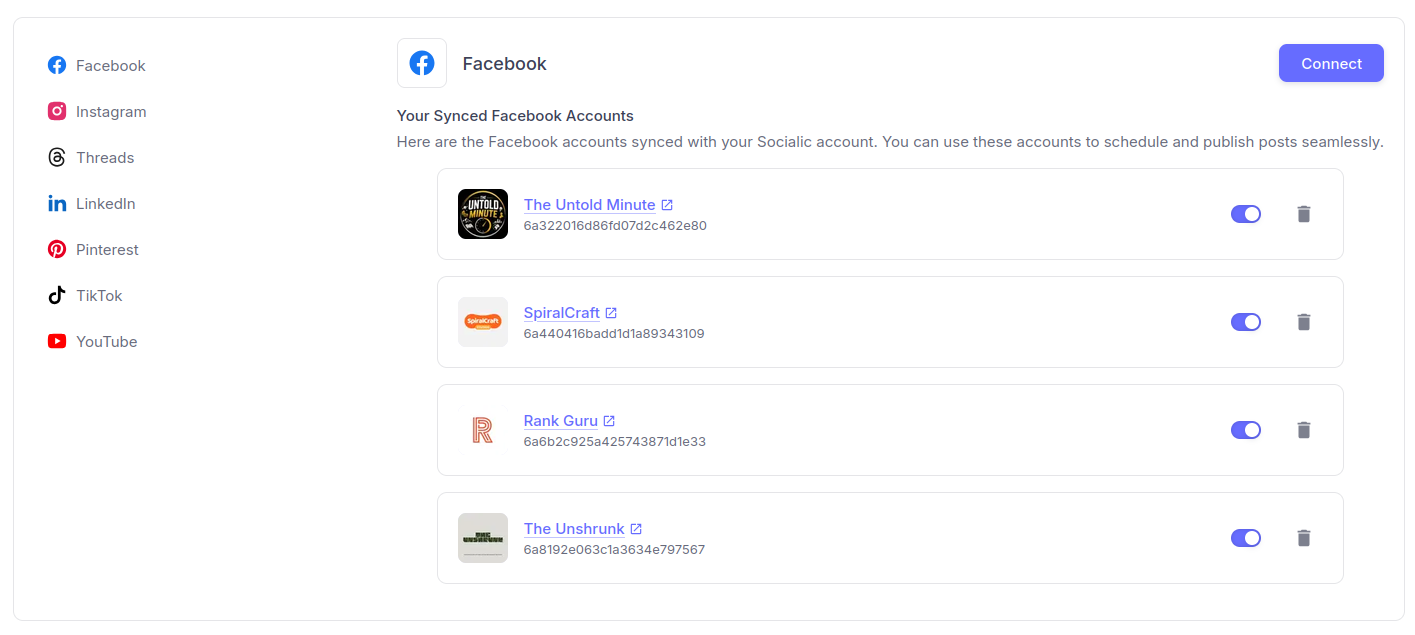
The Sync page. Each platform has its own tab, connected accounts appear in a list with an on/off toggle, and the Connect button starts a new authorization.
Once your accounts show as connected on the Sync page, you are ready to create content. For a full walkthrough of the connection flow, including the Meta “select every Page” trap and re-authorization, see how to connect your social media accounts to a scheduler.Step 2: Open the Content Creator and Select Your Platforms
Click Content Creator in the left menu. This is the multi-platform composer. The first screen is Select Channels For Schedule Content, showing every channel you connected in Step 1, grouped by platform.
Tick every channel you want this post to go to. You can select one Facebook Page, your Instagram account, a LinkedIn page, your TikTok, your YouTube channel, a Pinterest account, and your Threads profile all at once. There is no limit to how many you combine in a single post setup.As soon as you select more than one channel, Socialic adds a Customize For Each Platform step. If you only pick one channel, it skips straight to the composer. On the free plan, a banner at the top shows how many posts you have left in your monthly scheduling quota so you know where you stand before you start.
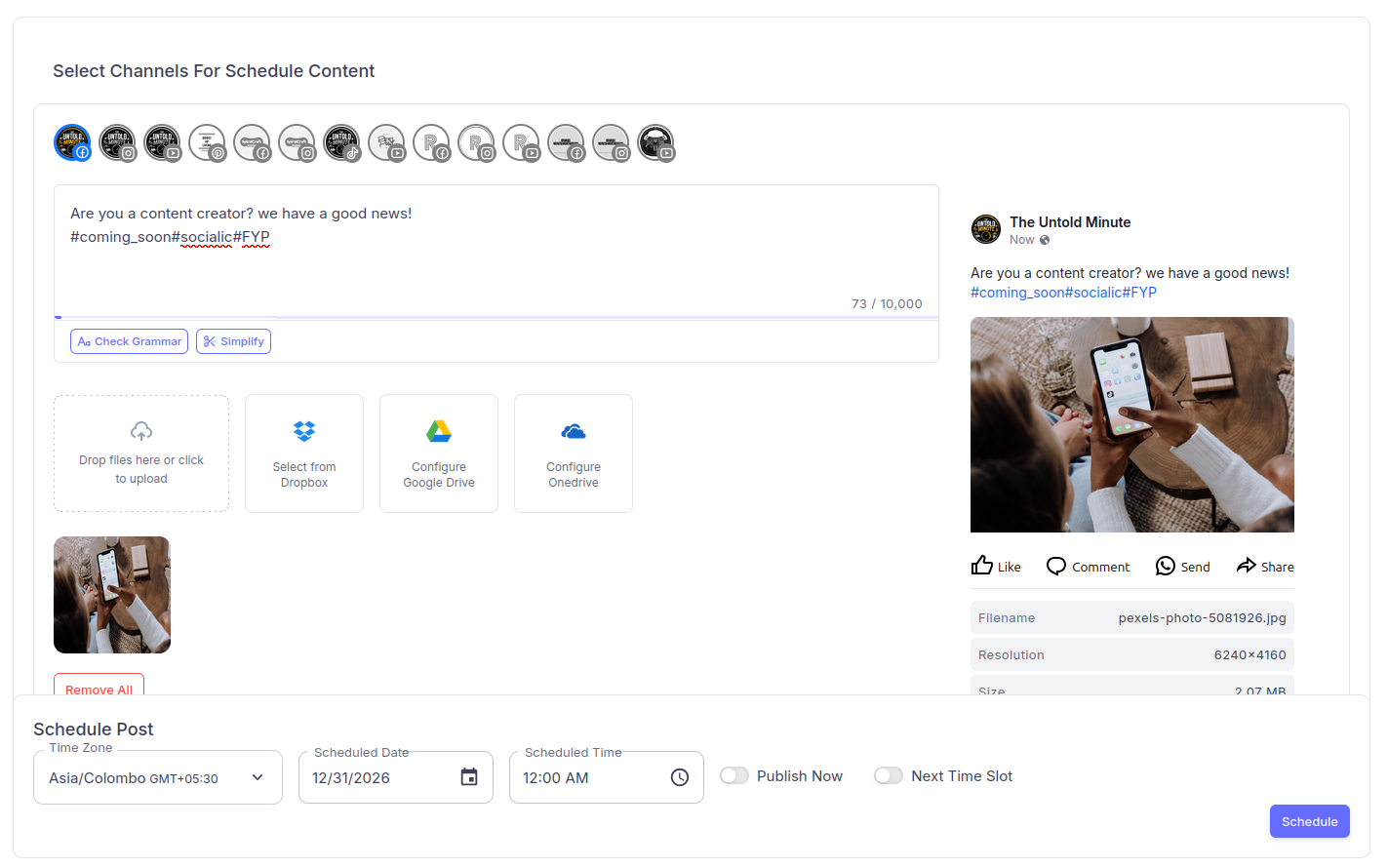
The Content Creator in one view: pick your channels along the top, write and tailor the caption, attach media once, preview the post live, and set the schedule at the bottom. Steps 3 to 6 below walk through each part.
Step 3: Write Your Caption, Then Tailor It Per Platform
The composer gives you a main caption field plus a separate caption field for each platform you selected. The workflow most people use is: write one solid caption in the main field, then open each platform’s section and adjust it. Our guide to customizing one post for every platform breaks down exactly what to change per network, with a per-platform checklist.Character limits are enforced as you type
Each platform has its own caption ceiling, and Socialic shows a live counter and blocks you from exceeding it:Facebook: 10,000 characters
YouTube: 5,000 characters (description)
LinkedIn: 3,000 characters
Instagram: 2,200 characters
TikTok: 2,200 characters
Threads: 500 characters
Pinterest: 500 characters (description)
Use the AI assistant to speed up the writing
Every caption field has the Socialic AI assistant attached. You can:Generate a caption from a prompt. Describe your idea, choose Brief Caption or Detailed Post, and it drafts the text.
Generate a caption from your image. The Image Reader looks at up to two of your uploaded images and writes a caption based on what is actually in them.
Fix grammar and spelling on a caption you already wrote, in one click.
Simplify and shorten a caption that is running long. It proposes a tighter version you can accept or discard.
Step 4: Add Your Media Once
Upload your image or video in the media area of the composer. You attach it a single time and it applies to every selected platform, so there is no re-uploading per network. You have four ways to add media:Upload from your device by dragging files in or browsing.
Pick from your File Manager, the media library of everything you have already uploaded to Socialic.
Pull from Google Drive, OneDrive, or Dropbox using the cloud buttons in the upload area. Connect the cloud account once under Settings, then browse and select without leaving the composer. Socialic copies the file in for you.
Import from a URL in the File Manager first, then select it in the composer.
Post vs Reel is detected automatically
For Facebook and Instagram, Socialic decides Post or Reel based on your media. A single video file with nothing else is treated as a Reel. An image, multiple images, or a mixed set is treated as a Post. You can see and confirm which one each platform is set to in that platform’s section.Platform media rules to keep in mind
YouTube only accepts a video. TikTok needs a video. Pinterest needs at least one image or a video. A Reel on Facebook or Instagram needs exactly one video. If your media does not match what a selected platform allows, Socialic flags it before you can schedule, telling you exactly what that platform needs.Step 5: Fill In the Platform-Specific Details
This is the step that separates real multi-platform scheduling from blunt cross-posting. Each platform section in the composer surfaces only the fields that network actually requires.YouTube
Title (up to 200 characters). Publishing without one limits your reach, and Socialic warns you.
Category and Tags (type and press Enter or comma to add each tag).
Visibility: Public, Private, or Unlisted.
Custom thumbnail: upload a separate image, up to 2MB, roughly 16:9. Optional but recommended.
Scheduling a YouTube video in Socialic: the composer surfaces the title, category, tags, visibility, and custom thumbnail fields that YouTube needs, right alongside the caption.
TikTok
Who can view this: Everyone, Followers, Friends, or Only me. Some options are unavailable on private accounts.
Allow users to: Comment, Duet, Stitch. Duet and Stitch apply to video posts.
Commercial content disclosure: turn this on if the video promotes goods or services. Choose Your brand (promoting yourself), Branded content (promoting a third party), or both. TikTok requires this and will label the post accordingly. It cannot be combined with “Only me” visibility.
Video cover: drag the scrubber to the frame you want as the cover, then click Set as cover. Moving the slider only previews. You have to click Set as cover to save it.
Board: select an existing board, or type a new board name and press the + button to create it without leaving Socialic.
Topic (the pin title, up to 100 characters).
Destination link: the URL the pin should send people to. Must start with http:// or https://.
Facebook and Instagram
Confirm Post or Reel (auto-detected from your media).
For a Reel, pick a cover frame from the video, or upload a cover image (up to 2MB, vertical 9:16).
LinkedIn and Threads
These two are the simplest: just the caption. Threads holds you to 500 characters, so this is where your shortest, most conversational version goes.Post metadata (optional, all platforms)
You can attach custom key-value pairs to a post as metadata. This does not appear publicly. It gives the AI assistant more context to work with later, for example when suggesting replies in the Comments Manager.Step 6: Set Your Schedule
At the bottom of the composer is the Schedule Post panel. You have three ways to time a post.
Pick a date and time. Set the time zone, the date, and the time. The post publishes then.
Publish Now. Skips scheduling and sends the post to every selected platform immediately.
Next Time Slot. If a channel has posting time slots configured, this queues the post into that channel’s next open slot automatically, so you do not have to pick a time at all. Socialic shows you what that next slot is.
Stagger the same idea across the week
When you have more than one channel selected, you can set a different date and time for each one. This matters. Dropping the identical idea on all seven platforms at the exact same minute looks spammy to the small slice of your audience that follows you in more than one place, and it burns a good idea in a single day. Space the versions out: LinkedIn Tuesday morning, Instagram Wednesday, TikTok Thursday, Threads Friday. One idea now covers most of a week. For the reasoning behind platform-specific timing, see our
best time to post on Instagram
,
TikTok
, and
guides.
Step 7: Schedule and Confirm
Click Schedule (or Publish Now). If you set a custom YouTube thumbnail or a TikTok or Reel cover, Socialic processes those first, then queues the post. If TikTok is one of your targets, you get a short confirmation listing which TikTok channels the post is going to.
On success you land on a Content Created screen confirming the post is scheduled, with three choices:
Create More Content resets the composer so you can set up the next post in the same session. This is how you batch a week or a month in one sitting.
Go to Calendar opens the month view so you can see where the new post sits.
Go to Content Manager opens the full list of scheduled and published content.
Where Your Scheduled Posts Live
Once a post is queued, you manage it from two places.The Calendar
The Calendar shows every scheduled post on a month grid. Click a post to open a Quick Update sidebar where you can edit the caption (with the same grammar and simplify tools), change the schedule, or pause it. For deeper changes, Advanced Update reopens the full composer. You can also Publish Now from here, or delete the post. Instagram cannot be deleted automatically by any tool, so for Instagram posts Socialic gives you a direct link to remove it in the Instagram app. Our guide to rescheduling, pausing, and bulk-editing scheduled posts covers all of this in depth.
The Content Manager
The Content Manager is the full table view: filter by status (scheduled, published, failed, paused), by date range, or by search. Select multiple posts for bulk pause or delete. Cross-posted versions of one idea are shown as a group. Each row has quick actions to edit, pause, view the original, jump to the Comments Manager for that post, or Publish to more channels if you want to add a platform after the fact. Once posts are live, the Analytics dashboard rolls their performance up across every platform.
Doing This at Scale: The Bulk Creator
The Content Creator is built for setting up posts one idea at a time, with full visual control. When you already have a whole month planned in a spreadsheet, the Bulk Creator is faster. You download an XLSX template for each platform, fill one row per post (pasting media file keys copied from the File Manager, not URLs), upload the sheet, review and edit the parsed rows in a grid, and submit the whole batch at once. A month of one idea repurposed across six platforms is roughly 30 rows and one upload. The full workflow is covered in
how to batch create a month of social media content in one day
.
Common Mistakes to Avoid
Using one identical caption everywhere
The whole point of per-platform caption fields is to use them. A LinkedIn audience expects a different tone and depth than a Threads audience. Spend the extra two minutes per platform — here is what to change on each one. It is the difference between scheduling smartly and lazy cross-posting that underperforms.Publishing to every platform at the same minute
Set staggered times. It stretches one idea across several days and avoids looking like a bot to anyone who follows you in more than one place.Re-uploading video with another platform’s watermark
If your video was exported from TikTok or Instagram with a watermark, upload the clean original instead. Platforms actively deprioritize content carrying a competitor’s watermark. Keep watermark-free master files in your File Manager.Forgetting YouTube and TikTok still want manual activity
Scheduling tools handle publishing, but YouTube’s systems watch for channels that look fully automated. Sign in and manually publish, like, or comment on your channel at least once a week to keep activity looking authentic. Socialic reminds you of this when you schedule to YouTube.Ignoring the platform validation warnings
If Socialic tells you a Reel needs exactly one video, or YouTube needs a video file, or a Pinterest board is required, fix it before scheduling. Those checks mirror what the platform’s own API enforces, so skipping them just means the post fails later instead of now.Final Thought
Scheduling to every platform at once is not about firing off the same post seven times. It is about doing the thinking once, then letting the tool handle the seven different executions: the character limits, the YouTube title, the TikTok disclosure, the Pinterest board, the staggered timing. That is what turns a 40 minute chore into a five minute one.The flow is always the same. Connect your accounts on the Sync page. Open the Content Creator and select your platforms. Write a caption and tailor it per network. Attach your media once. Fill in the platform-specific fields. Set staggered times. Schedule. Then manage everything from the Calendar and Content Manager, and spend the time you saved actually talking to your audience.One idea in. Seven platforms scheduled. A few minutes of work.Try Socialic free
and schedule your first multi-platform post today.
Frequently Asked Questions
Can I schedule one post to Facebook, Instagram, TikTok, LinkedIn, Threads, Pinterest, and YouTube at the same time?
Yes. In Socialic’s Content Creator you select every connected channel, tailor the caption per platform, attach your media once, fill in each network’s required fields, set a time, and click Schedule. Socialic then queues and publishes to all of them automatically.Do I have to write a separate caption for each platform?
No, but it helps. Socialic gives you a shared caption field plus a separate field per platform. Writing one base caption and adapting it for each network’s length, tone, and hashtags performs far better than posting identical text everywhere.Can I schedule each platform for a different time?
Yes. With more than one channel selected you can set a different date, time, and timezone per platform, which lets you stagger the same idea across several days instead of publishing everywhere at the same minute.Which social platforms does Socialic support?
Facebook Pages, Instagram, Threads, LinkedIn, Pinterest, TikTok, and YouTube. Each has its own fields in the composer, such as YouTube titles and thumbnails, TikTok disclosure settings, and Pinterest boards and destination links.Is there a free way to schedule to multiple platforms?
Socialic’s free plan lets you connect accounts and schedule a set number of posts each month, which is enough to run the full multi-platform flow. Paid plans remove the monthly limit and add more channels, team seats, and storage.Keep Reading
Scheduling is only half the job. Learn
how to repurpose one piece of content across 6 platforms
so each version you schedule is actually adapted to how that platform works.
Want to fill your entire queue in one sitting? Read
how to batch create a month of social media content in one day
and pair it with
the ultimate social media content calendar template for 2026
to plan what goes into each slot.