
What Is Socialic MCP? Scheduling Social Posts From Your AI Assistant, Explained
Socialic MCP is a hosted Model Context Protocol server that connects Claude directly to your Socialic account. Instead of opening a dashboard, you describe the post you want in plain language — “schedule this to Instagram and LinkedIn for tomorrow at 9am” — and Claude drafts it, checks it against each platform’s rules, and schedules or publishes it for you.
It connects to AI tools in two common shapes. As a Connector — a settings-screen integration with login built in, like on claude.ai — you paste a URL and it handles the rest. As an MCP server — the way coding-agent tools like Claude Code and Codex work — you register it yourself, usually with a command, and authorize it as a separate step. Either way there’s no API key to generate or paste, just a browser login. You keep using the same Socialic account and the same connected channels — MCP just gives you a second, conversational way to reach them.
This article covers what MCP actually is, what Socialic’s MCP server can do, and why you’d use it instead of (or alongside) the dashboard. If you’re ready to set it up, jump to how to connect Socialic MCP to Claude once you’ve read this.
What “MCP” Actually Means
MCP stands for Model Context Protocol, an open standard for connecting AI assistants to external tools and data. Think of it as the same idea as “Sign in with Google,” but for giving an AI assistant the ability to do things on your behalf, not just talk about them.
A server built on MCP — like Socialic’s — exposes a set of specific, well-defined actions (called tools) that a connected assistant can call: list your channels, schedule a post, check a timeslot, and so on. The assistant decides which tool to use based on what you ask for, fills in the required fields, and calls it. You approve the connection once; after that, the conversation itself is the interface.
The practical result: your AI assistant stops being limited to giving you advice about social media and starts being able to actually schedule it.
What Socialic MCP Lets Claude Do
Once connected, Socialic MCP registers six tools Claude can call automatically, based on what you ask for:
List your channels. See every channel connected to your Socialic account — platform, status, caption limits, and exactly what each one requires before a post can go out.
Schedule a post. Create a scheduled or instant post across one or more channels at once, with per-platform overrides like YouTube visibility, TikTok privacy settings, or a Pinterest board.
List scheduled posts. Pull up what’s already scheduled or published, filtered by date range, without opening the calendar.
Check available timeslots. Look up each channel’s next open posting slot so Claude can pick a good time automatically instead of guessing.
Reference your media library. Point at an image or video you’ve already uploaded to Socialic by name, instead of re-uploading it into the chat.
Look up timezones. Resolve any IANA timezone so “9am” means the right 9am, wherever your audience is.
On top of those six tools, Socialic MCP also registers four prompt shortcuts — ready-made workflow starters your client can surface directly, often as a slash-command or ”+” menu: a quick channel lookup, a full draft-to-schedule flow, a timezone lookup, and a table of your scheduled and published posts.
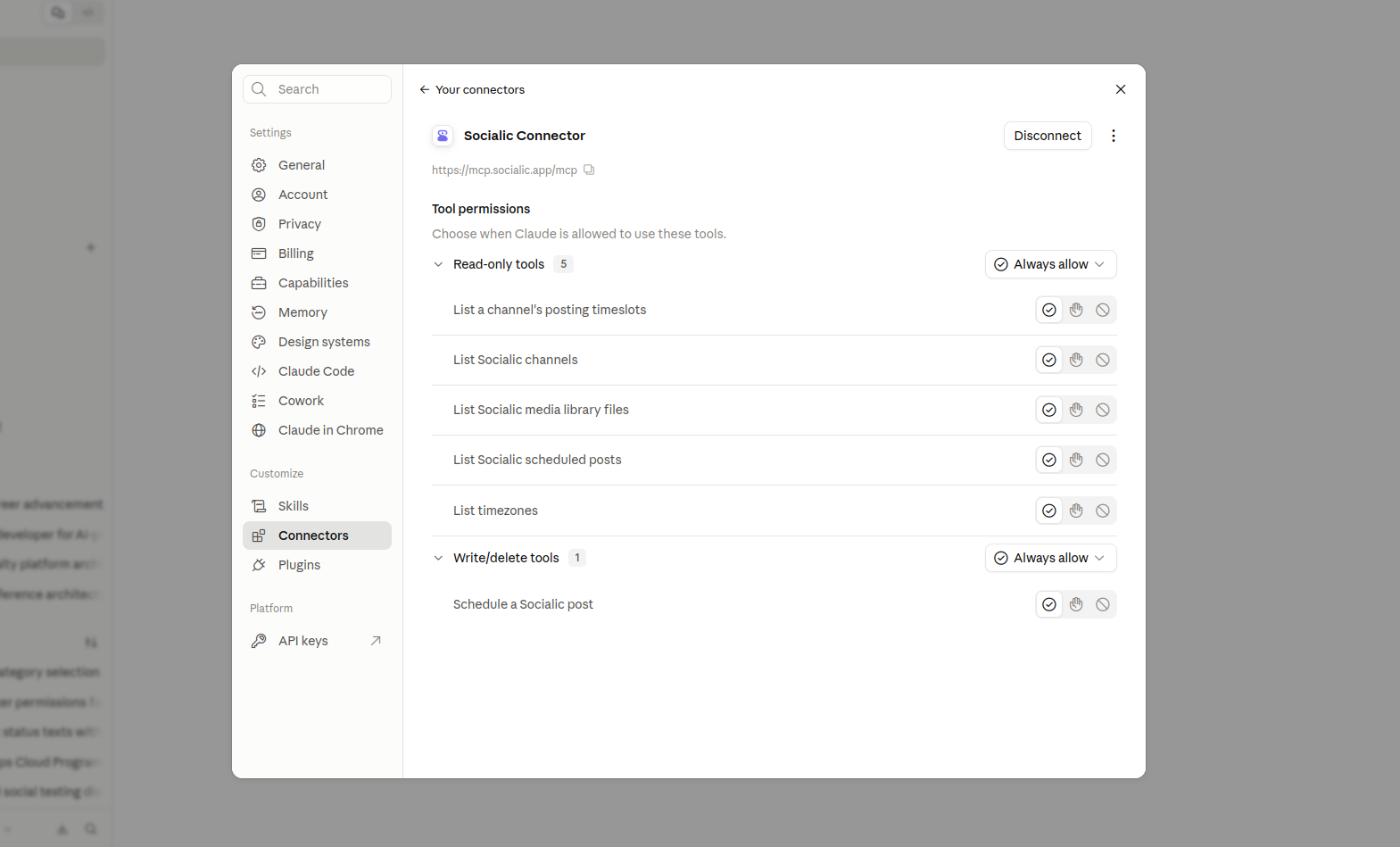
All six tools, as they appear on the Socialic Connector’s settings page on claude.ai.
What It Looks Like in Practice
A typical exchange looks like this:
- You: “Post this to Instagram and TikTok tomorrow at 9am ET: ‘New blog post is live — link in bio.’”
- Claude: “Both channels are connected. TikTok requires a video or up to 5 images — what should I attach?”
- You: “Use the launch-graphic.png from my media library.”
- Claude: “Scheduling for Thu, 9:00 AM ET on both channels… Scheduled on Instagram & TikTok.”
Notice what happened in the middle: Claude didn’t just fire the post through. It checked TikTok’s requirements first and asked for what was missing before anything was submitted. That’s not a chat trick — it’s Socialic MCP running the same validation the dashboard runs, before the request ever reaches a platform’s API.
Why Use It Instead of the Dashboard
The dashboard isn’t going anywhere, and for building out a full week of content it’s still the faster tool. MCP earns its place for a different kind of moment:
No context-switching. If you’re already talking to Claude about what to post, you can schedule it in the same window instead of pasting the copy into a separate tab.
It asks instead of guessing. When a platform needs something you haven’t given it yet — a TikTok privacy setting, a Pinterest board, a YouTube category — Claude asks, rather than silently failing or submitting an incomplete post.
It fits into a bigger workflow. If you’re using Claude to draft the caption, resize the image, or plan the week, scheduling becomes the last step of that same conversation instead of a separate app.
No extra login, no extra cost. It runs on your existing Socialic account and plan. There’s nothing new to sign up for and no separate MCP charge.
How It’s Secured
Connecting Claude to Socialic MCP does not hand it your password. After you add the server, you authenticate it — on claude.ai this happens automatically right after you add the connector; in Claude Code you run /mcp, select socialic, and choose Authenticate. Either way, it opens Socialic’s own login screen in your browser. You sign in there — not inside Claude — and once you submit, Socialic redirects back to an address Claude is listening on. Claude picks up the access token from that redirect automatically, stores it, and sends it with every request it makes to Socialic MCP from then on. Your credentials never pass through Claude at any point.
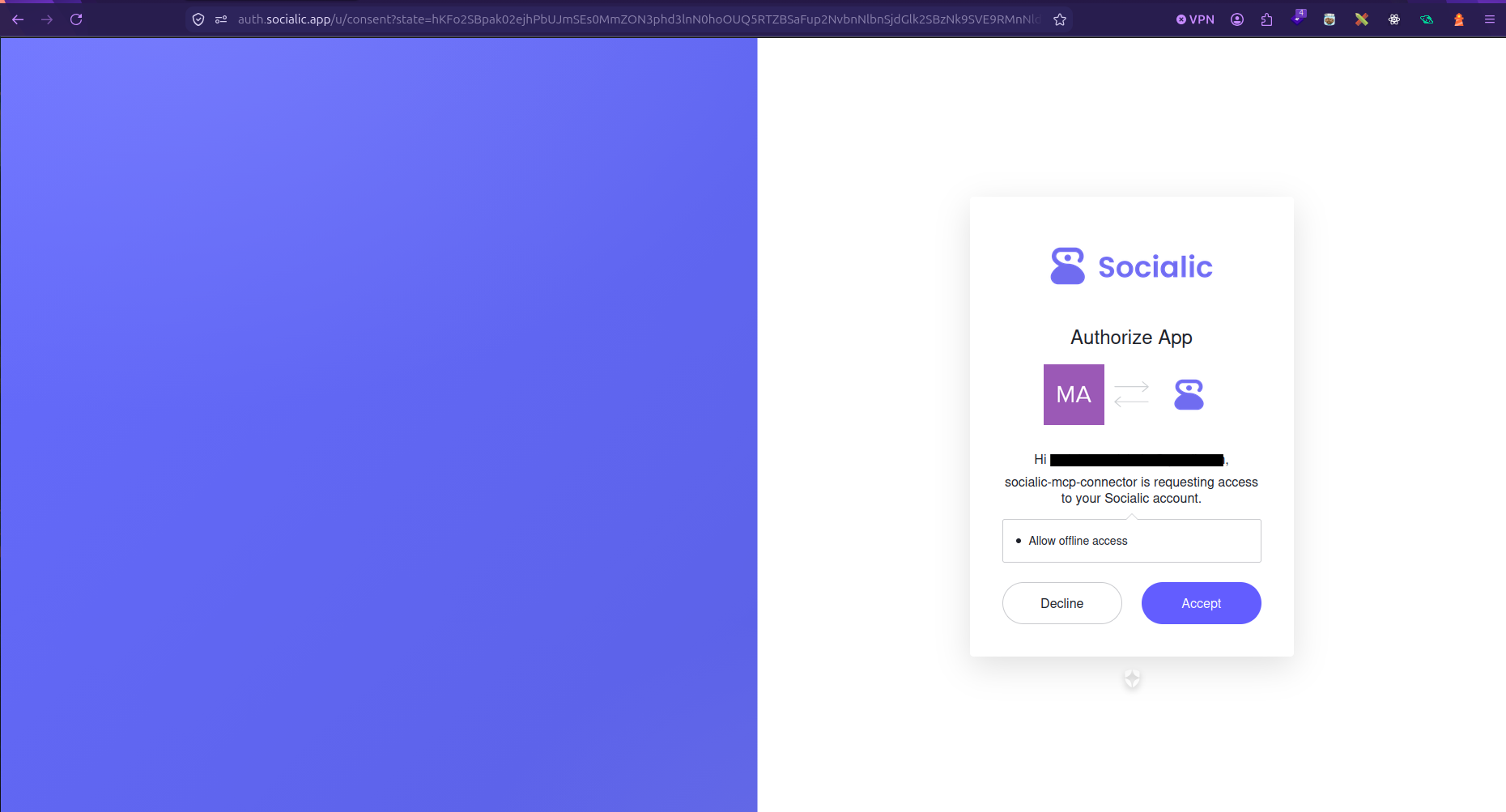
This is Socialic’s own page (auth.socialic.app), not a screen inside Claude.
On claude.ai you also get per-tool permission controls — Always allow, Ask each time, or Never — split into read-only tools (listing channels, timezones, scheduled posts, timeslots, media files) and the one write tool that actually schedules a post. Most people leave the read-only tools on always-allow and set scheduling to ask each time, so nothing publishes without an explicit confirmation.
Every request MCP makes is also checked against the same rules the dashboard enforces — caption length, required fields, media type and count per platform — before anything is submitted. If a post would break a platform’s rules, nothing goes out; Claude is told exactly what’s missing so it can ask you for it.
One limit worth knowing: the hosted server has no access to your computer’s filesystem, so media has to come in as an https link or be referenced from your Socialic media library — you can’t hand Claude a local file path directly. Upload it to Socialic’s file manager first, or give Claude a public URL, and it can attach it from there.
Who This Is Actually For
Socialic MCP is most useful for people who already work inside Claude for part of their day: solo creators drafting captions on claude.ai and wanting to skip the copy-paste step, marketers planning a week of content in a conversation who want to schedule as they go, and developers or agencies using Claude Code who want to script or automate scheduling rather than clicking through a UI. You don’t need to touch a terminal for any of this — the claude.ai connector covers the same ground with just a browser.
For the Claude Code crowd, the same six tools show up right in the terminal — no need to ask Claude in a conversation just to confirm what’s available:
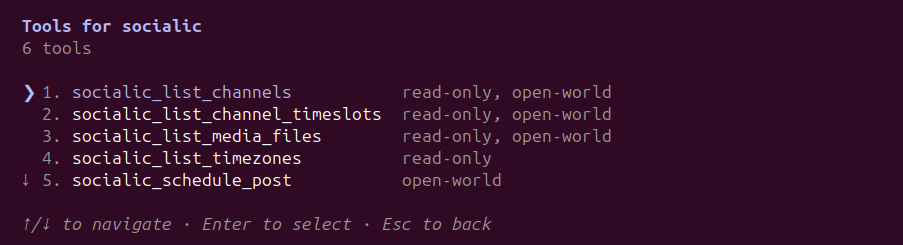
Run /mcp → socialic → View tools in Claude Code to see this directly.
If you rarely use Claude day-to-day, the dashboard alone is still the simpler path — MCP is an added door into the same house, not a replacement for the front one.
Frequently Asked Questions
Do I need a Socialic account already?
Yes. Socialic MCP schedules to the channels you’ve already connected in your Socialic account. If you don’t have one yet, sign up free on the dashboard, connect at least one channel, then connect Claude to Socialic MCP.Does scheduling through MCP cost extra?
No. Posts created through MCP count against your normal Socialic plan usage, exactly the same as posts made in the web app. There’s no separate MCP fee.Is my Socialic login shared with Claude?
No. Authentication happens through Socialic’s own login screen in your browser. Claude only ever receives a scoped access token it uses to call the Socialic API on your behalf — it stores and refreshes that token itself, and your password never passes through it.Which platforms can I schedule to through Socialic MCP?
Whatever you’ve already connected in Socialic: Facebook Pages, Instagram, LinkedIn, YouTube, TikTok, Threads, and Pinterest.What’s the difference between a Connector and an MCP server?
Same underlying protocol, different setup experience. A Connector is a hosted integration you add from a settings screen — paste a URL and it handles login for you. An MCP server is one you register yourself, usually with a command, common in coding-agent tools like Claude Code — then authorize it separately.Which AI clients work with Socialic MCP?
Any client that supports MCP, in one of two shapes: as a Connector (like claude.ai’s Connectors) or as an MCP server you register yourself (like Claude Code or Codex). It’s built to work broadly across MCP-compatible AI assistants and coding tools, not tied to a single one.Can I still use the Socialic dashboard once I connect MCP?
Yes. MCP is an additional way to schedule, not a replacement. Posts made through Claude show up in the same calendar, queue, and analytics as posts made in the dashboard, and you can keep using both side by side.Final Thought
Socialic MCP doesn’t replace the dashboard, and it isn’t trying to. It closes the gap between “I asked Claude to help me write this post” and “this post is now scheduled,” so the assistant you’re already talking to can finish the job instead of handing it back to you.
If you already draft content with Claude, this is the step that was missing.See Socialic MCP and connect Claude, or try Socialic free if you don’t have an account yet.
Keep Reading
Ready to connect it? How to connect Socialic MCP to Claude walks through adding the server, approving access, and confirming the connection works.
Want to see it in action first? every capability, with sample prompts and responses covers what to actually ask for, and how to schedule a Meta post with Socialic MCP walks through a full Facebook, Instagram, and Threads example, with YouTube, TikTok, Pinterest, and LinkedIn covering the rest.
Prefer the dashboard, or want to compare the two? How to schedule posts to every platform at once covers the same outcome through Socialic’s Content Creator, and how to connect your social accounts to a scheduler covers connecting the channels themselves, which you’ll need before either method works.